SpeedRunners 2 PC Keyboard Controls
Default arrow-key layout and practical remaps for SpeedRunners 2 on Steam.
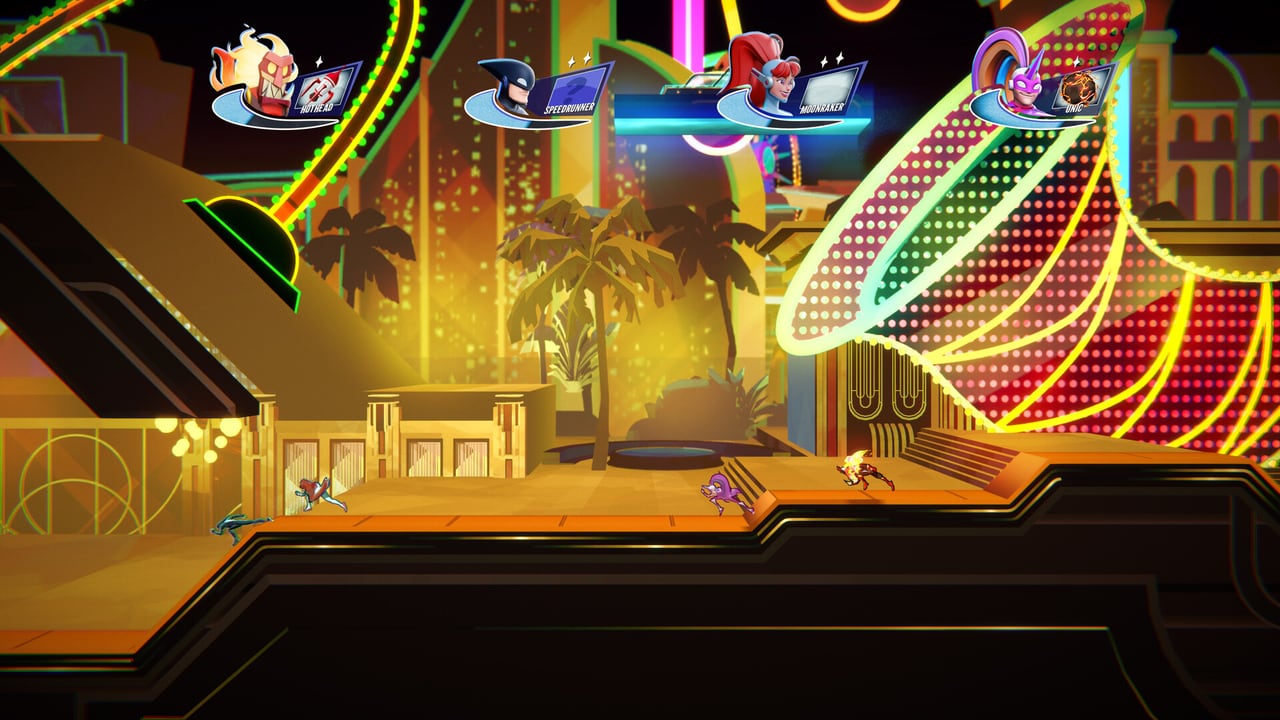
The default SpeedRunners 2 PC layout mirrors the classic series feel: movement on the right hand via arrow keys, and action buttons clustered for the left hand. It is precise once learned, but it is also the number-one reason new demo players ask for a remap guide. This page documents the defaults, explains each key’s job in a live race, and points you toward comfortable alternatives without inventing undocumented secret binds.
Default keyboard map
| Action | Default key | Race role |
|---|---|---|
| Move left / right | Left / Right Arrow | Lane control and ledge reads |
| Jump | Z | Wall jumps, escapes, slope setups |
| Slide | Down Arrow | Low corridors, dodge, trip setups |
| Grapple | X | Blue-ceiling swings and recoveries |
| Use Pickup | C | Missiles, traps, freeze, golden hook |
| Boost | Space | Meter burst to stay on camera |
| Taunt | Up Arrow | Emotes — keep it away from Jump |
These defaults are widely documented for King of Speed and match the franchise’s historical keyboard philosophy. Always confirm inside Options → Controls after a patch, because developers can tweak prompts.
How the default layout feels in motion
Imagine an eight-player lobby on a map with alternating boost pads and blue ceilings. Your right hand rides the arrows while your left hand hovers over Z/X/C and your thumb rests near Space. The danger is Down Arrow for Slide sitting next to movement — accidental slides kill height. Up Arrow taunt above Down is meme-friendly and accidentally hilarious when you meant to correct vertical positioning cues in older titles; in SR2 stay disciplined.
When the pack stretches, Boost on Space is easy to mash. Good. When you need a calm freeze-ray timing, C must not fight with X. Practice the cadence: move → jump → grapple → release → slide under → pickup.
Recommended beginner remap direction
If your hands protest within five minutes, open rebinding (see Rebind Tips) and consider:
- Movement on A/D or A/D + maybe W unused to free arrows.
- Jump near Space or F depending on preference — some keep Space as Boost and put Jump on a closer key.
- Grapple and Pickup on adjacent keys so item swings feel like one motion family.
- Slide on S or Ctrl so it is deliberate, not an accident while strafing.
There is no single “pro bind.” The win condition is consistency under fire-wall pressure described in Stay On-Screen.
Keyboard-specific tech notes
- Digital movement on keys is excellent for strict horizontal platforming — fewer floaty stick errors.
- Wall jump chains reward rhythmic Jump taps; do not hold jump hoping for extra height the game does not give.
- Grapple tap vs hold — learn whether your swing needs a held latch; release timing creates speed, not panic mashing.
- Boost discipline — Space is large and tempting; save meter for camera emergencies and item recovery.
Warm-up drills (keyboard)
- Ten wall-jump corridors without touching items.
- Ten grapple swings focusing on release angle only.
- Five races where you may only use Slide as a deliberate corridor tool.
- Five races allowing full Items once movement feels calm.
Use the Steam demo tutorials, then graduate to bots via Local & Practice.
Accessibility and comfort
Long arrow-key sessions cause pinky and wrist strain. Take breaks, raise your chair so elbows are neutral, and do not ignore pain. A controller (see Controller Layout) is a valid “skill” choice, not a downgrade. Cross-play and multi-platform launches on September 3, 2026 mean you may swap devices often — keep a note of your preferred PC binds.
Link your keyboard mastery to the rest of the wiki
- Overview: Controls Hub
- Pad players: Controller
- Movement theory: Movement & Grapple
- Map reads for ceilings: Boosts & Hazards
- Quick reference: Controls Cheatsheet
Keyboard excellence is not about memorizing a table once — it is about surviving the eighth player’s missile while your fingers still know where Grapple lives.
Keep this page bookmarked
Revisit this PC Keyboard after every demo patch and again on September 3, 2026 launch week. Cross-check binds in Controls, routes in Maps, and lobby types in Modes so your notes stay aligned with Fair Play Labs’ live build — page key: content\source\controls\keyboard.json.
Frequently Asked Questions
Quick answers to the most common questions.
What key is grapple on PC?
Default Grapple is X. Confirm in Options if you remapped.
What key uses items?
Default Use Pickup is C.
Can I use WASD?
Yes. Remap movement in Options. See [Rebind Tips](/controls/rebind/).
Is Space jump or boost?
Default Space is Boost; Jump is Z. Many players swap these — just stay consistent.
Where is the full controls overview?
Visit the [Controls Hub](/controls/).