SpeedRunners 2 Best Competitive Settings
Video, audio, input, HUD, and network — every setting that affects competitive performance in King of Speed.
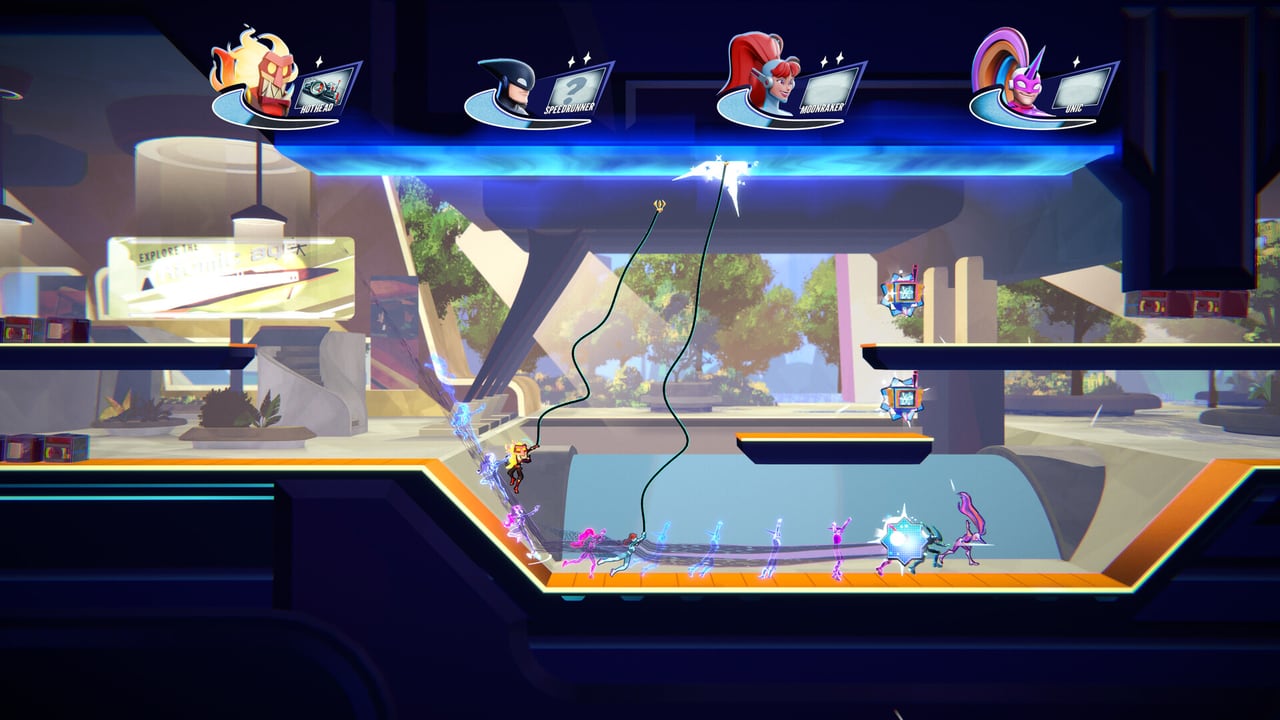
Competitive SpeedRunners 2 rewards clean inputs and clear visual information. Settings that work for casual couch play can actively hurt your performance in ranked queues and tournament brackets. This guide covers every setting category — video, audio, input, HUD, and network — and explains the competitive reasoning behind each recommendation. Changes take effect immediately; no restart required for most options.
Video settings
Resolution should be your display’s native resolution. Lowering resolution for performance is counterproductive in a game where reading small on-screen information (pickup spawn indicators, boost meter fractions, fire-wall proximity) directly affects decision speed. If your framerate drops below 60fps consistently, reduce other visual settings before resolution.
Frame rate cap set to 60fps or Unlimited. A frame rate cap matching your monitor’s refresh rate (60Hz, 120Hz, 144Hz) reduces input lag compared to uncapped or significantly higher caps. If you experience micro-stuttering, try capping at your monitor’s exact refresh rate rather than Unlimited.
V-Sync should be Off for competitive play. Vertical sync introduces input lag measured in frames — in SpeedRunners 2, a single frame of lag changes grapple release timing and item-firing windows. If you see screen tearing during high-speed grapple sequences, accept it or use a frame rate cap at your monitor’s refresh rate instead.
Shadow quality set to Low or Off. Shadows do not affect gameplay information and the GPU savings directly improve frame time stability in eight-player missile spam.
Particle effects set to Low. Missiles, freeze shafts, and trap explosions all render particle effects that can obscure the camera edge during critical moments. Low particle quality preserves readability without removing the visual identity of each item type.
Ambient occlusion and post-processing set to Off. These settings add visual polish but do not convey gameplay information and add render overhead that could cost frames in eight-player races.
Texture quality set to Medium. High or Ultra textures consume VRAM that could be needed for frame stability. Medium delivers identical gameplay information with lower memory pressure.
Audio settings
Master volume at 80–100%. Competitive play requires hearing lock-on warnings, item spawn cues, and directional audio that signals where threats are approaching from.
Music volume at 0–30%. Music does not convey gameplay information and can mask audio cues during high-tension moments. Many tournament players mute music entirely.
Sound effects volume at 80–100%. This is where item audio lives — missiletravel warnings, freeze activation sounds, trap placement feedback, and the golden grapple activation tone all come through this channel.
Voice chat settings depend on your setup. In ranked play, voice chat is optional. In tournament or custom lobby practice with teammates, enable push-to-talk and set the input device to a close-talking microphone to avoid background noise triggering the mic during races.
Audio output should be Stereo or the highest quality your hardware supports. Spatial audio can distort directional lock-on cues that require stereo separation to interpret correctly. A standard stereo output is the safest competitive choice.
Headphones vs speakers strongly recommended: headphones. The directional lock-on audio in SpeedRunners 2 is stereo-based. Mono speakers collapse the spatial information that tells you which direction a missile is incoming. Competitive players use stereo headphones for this reason.
Input settings
Controller type select your specific controller after plugging in. The game auto-detects but manual selection ensures the correct button prompts and dead zone defaults.
Dead zones set to the minimum that does not produce drift. Most competitive players use 0–5% dead zones on both sticks. Higher dead zones smooth input but delay the initial response on jump and slide inputs.
Invert Y-axis is a personal preference. There is no competitive advantage either way. Set it to whatever allows your aim (for camera in menus) and movement feel most natural.
Vibration / haptics should be Off. Controller vibration adds no gameplay information and can mask the tactile feedback of precise inputs. Some players find vibration helpful for confirming boost activation; if you fall into this group, keep it On only for the boost activation effect.
Button rebinding is covered in depth on the Rebind Tips page. For competitive play, the most critical rebind is ensuring Jump and Slide are on fingers that do not move during high-speed movement. Arrow-key movement is not recommended for competitive play due to the lack of a dedicated jump button.
Keyboard layout should be tested in the demo before ranked play. The Controls Hub covers all default binds. If you rebind, document your layout in the Practice Planner so you can reference it during tournament registration.
Gyro controls (Steam Deck, Switch Pro Controller) should be set to Off for competitive play unless you have hundreds of hours of gyro-aim practice. Gyro adds a skill ceiling but also adds a learning curve that can introduce inconsistency in high-pressure moments.
HUD settings
HUD opacity set to 70–80%. The default HUD can be busy in eight-player missile storms. Reducing opacity preserves critical information (placement counter, boost meter, item slot) while reducing visual noise.
Placement indicator should be On and set to show the top three positions. Knowing whether you are first, second, or third in an eight-player race is the most important HUD decision — this information directly drives item strategy and boost timing.
Boost meter should always be visible. The boost meter is your emergency recovery tool. Hiding it to reduce clutter is a bad trade.
Item slot should always be visible. Knowing whether you are holding Utility or Offensive items shapes your next decision the moment you pick up a new item.
Timer and lap counter should be On. Lap counting matters for route planning; the timer matters for pace management in tournament brackets where overtime rules apply.
Minimap leave Off unless you are new and need help tracking runner positions. The minimap does not show enough information to be competitively useful and it consumes screen space that the camera edge already communicates better.
Damage indicators should be On. Knowing when you have been hit by a missile or caught in a trap line is essential for recovery decisions.
Network settings
Region selection set to your物理 location’s lowest-ping region. The game auto-selects based on latency but you can override in settings. Using a higher-population region even with slightly higher ping is sometimes worth it if the low-ping region has low player counts and therefore longer queue times.
Crossplay should be On for competitive players. Disabling crossplay limits your matchmaking pool to your platform population, which means longer queues and potentially easier but less meaningful ranked matches.
Packet send rate is not user-adjustable in the current build, but Fair Play Labs has indicated this will be an advanced option in a future patch. For now, the game manages this automatically.
Network diagnostics are visible in the settings menu under Network Stats. Monitor your packet loss and latency during ranked sessions. Consistent packet loss above 2% is worth investigating — it may indicate a network hardware issue rather than a game server problem.
Per-category summary table
| Category | Recommended | Why |
|---|---|---|
| Resolution | Native | Readability of small UI elements |
| Frame rate | 60 / refresh rate cap | Reduced input lag |
| V-Sync | Off | Eliminates sync lag |
| Shadows | Off | GPU savings, no gameplay info lost |
| Particles | Low | Camera edge readability |
| Post-processing | Off | No gameplay information |
| Music | 0–30% | Does not affect gameplay |
| Headphones | Stereo | Directional lock-on audio |
| Dead zones | 0–5% | Fastest initial response |
| Gyro | Off | Consistency under pressure |
| HUD opacity | 70–80% | Readability vs clutter |
| Minimap | Off | Camera edge is more useful |
| Crossplay | On | Larger matchmaking pool |
Settings to keep from defaults
Some default settings are already optimal for competitive play. Do not change: the boost meter visibility, item slot visibility, placement indicator, timer and lap counter, damage indicators, and the default button layout for controller (unless you use the rebind workflow on Rebind Tips).
Settings for tournament play specifically
If you are competing in a 64-player Tournament Mode bracket, run through this checklist thirty minutes before your first match: confirm V-Sync is off, confirm you are on the correct audio output device, plug in a wired controller or confirm your wireless battery is full, close background applications that produce audio notifications, and load into a bot race to verify frame rate stability before the bracket starts.
The Practice Planner has a pre-tournament settings checklist you can save and reference.
FAQ
Does V-Sync really matter in SpeedRunners 2? Yes. V-Sync introduces one to three frames of input lag depending on your refresh rate. In a game where grapple release timing is measured in frames, this is a meaningful disadvantage.
Should I use headphones? Yes for competitive play. Stereo headphones preserve the directional audio cues that tell you which direction a lock-on threat is coming from. Speakers collapse this spatial information.
What frame rate should I target? 60fps minimum for competitive play. If you have a 120Hz or 144Hz monitor, cap at that refresh rate rather than using Unlimited.
Is the minimap useful? No for experienced players. The camera edge and placement indicator provide the same information faster and without consuming screen space.
Should I enable crossplay? Yes, unless you have a specific reason to limit your matchmaking pool. Crossplay gives you the largest possible pool of opponents and shorter queue times.
Frequently Asked Questions
Quick answers to the most common questions.
Does V-Sync affect competitive performance?
Yes — V-Sync adds 1–3 frames of input lag. Turn it Off for competitive play.
Should I use headphones or speakers?
Headphones, specifically stereo. The directional lock-on audio requires stereo separation to interpret correctly.
What frame rate should I target?
60fps minimum. Cap at your monitor's refresh rate (60Hz, 120Hz, 144Hz) rather than using Unlimited for lowest input lag.
Is the minimap worth keeping on?
No. The camera edge and placement counter provide the same information faster and without occupying screen space.
What is the most important HUD setting?
Placement indicator showing top three positions. This drives your entire item and boost strategy in eight-player races.